


1. Expense Report for Worker
2. Workday Reporting – Tips and Tricks
3. Paymentworks OnBoarding Manager
4. Purchasing News
Last spring, we streamlined expense reporting by moving away from account delegation in favor of the “Expense Report for Worker” task. As a quick refresher, key benefits of this workflow include:
- Direct Troubleshooting: Budget errors and warnings go directly to the initiator (the person creating the report) rather than the Payee, enabling faster corrections and processing.
- Seamless Workflow: No need to “Switch Accounts” to process a report for someone else.
- Enhanced Visibility: Full business process routing and tracking are visible directly within the report.
- Strategic Delegation: Formal delegations can now be saved for out-of-office coverage rather than everyday administrative tasks.
Based on feedback regarding draft and pending reports, here are crucial tips for navigating this process smoothly:
Saving Drafts Correctly – If you select “Save for Later”, be aware of these required steps so your work isn’t lost:
Standard Expense Reports: You must enter at least one expense line containing a cost center you have access to. If you only complete the header without adding a line, the draft cannot be retrieved—it will have to be deleted, and you’ll need to start over.
P-Card Verifications: You must add a spend category to the expense line before saving.
How to Locate In-Progress or Draft Reports – If you need to return to a draft or check on a report’s status:
Search by ID: If you know the Expense Report ID, simply type it directly into the search bar.
Review Bi-Weekly Inbox Notifications: We will now distribute the monthly pending item report bi-weekly to help you track unsubmitted reports.
Use the WU Find Expense Report Lines for Organization Report: This powerful report answers a variety of status questions based on your search criteria:
Individual Status: Enter the Payee and sort by Expense Report.
Workflow Tracking: Filter by Report Status (In Progress) to see what is still awaiting approval.
Organization-Wide Search: Instead of checking individual accounts, simply enter at least one worktag used on an expense line (primarily the Cost Center).
New Reporting Capabilities
This report now features fields for Travel Classification and Business Purpose, allowing you to track categories like professional development or recruiting across your department.
Have an idea for a new Business Purpose code? Email Valerie Nye at vnye@wesleyan.edu.
Did you know the Financial Reporting Dashboard can do much more than just show your default cost centers? By using the drill-down caret (the small triangle that appears when hovering over any blue highlighted number), you can pivot and analyze your data across multiple levels and dimensions. 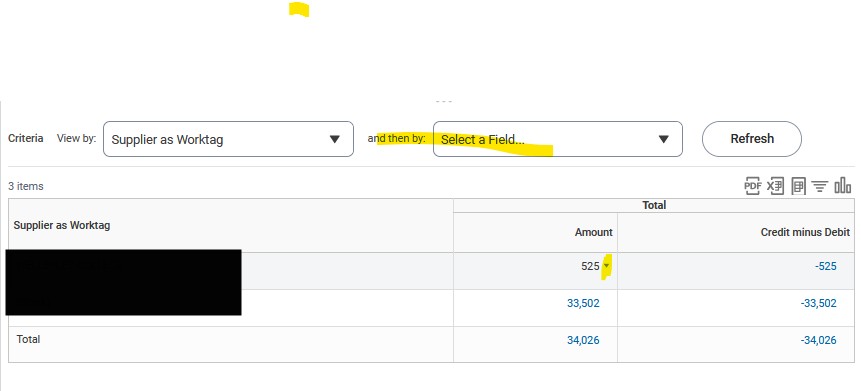
For example, you can easily view:
Supplier Payments: See exactly which vendors have been paid.
Posting Periods: Track when specific expenses hit your accounts.
Travel Classifications: Distinguish between domestic and foreign travel expenses.
Ledger Accounts: Pivot across all your cost centers at once for a broader view. 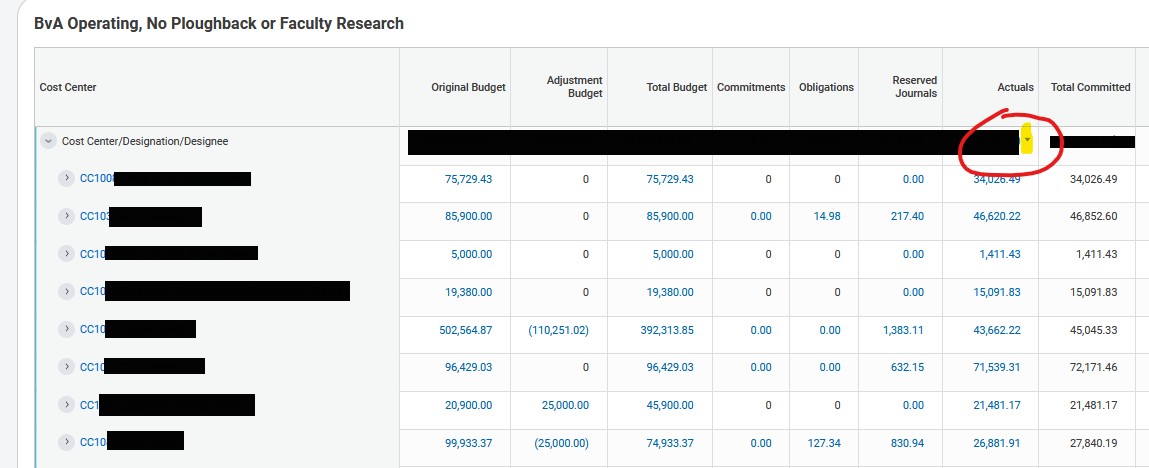
Give it a try and play around with multi-level pivoting.
3. PAYMENTWORKS ONBOARDING MANAGER
The Payment Works Onboarding Tracker has a new name and a new look. The new ONBOARDING MANAGER feature is live today and it merges the same onboarding tracker functionality into the modern user interface. The functionality remains the same.
Please see the Purchasing News for information on the Office Supply Free Store, Shredding and more.